Additional costs allow you to easily build specialized fees into your proposals. This versatile feature lets you account for structural expenses such as traffic control, mobilization, bonds, and permits. You can also use it to calculate custom striping fees (eg. stencils) or add upcharges for specific concrete finishes.
TABLE OF CONTENTS
View our Additional Costs video on YouTube

Other helpful videos associated with Crews:
- Inputting Costs (beginning at 10:40)
Bitumio > Left Navigation Bar > Product Settings > Additional CostsThe Organization Additional Costs screen displays and tabulates all additional costs via various columns that include Name, Fee Type, Fee Amount, and Cost.
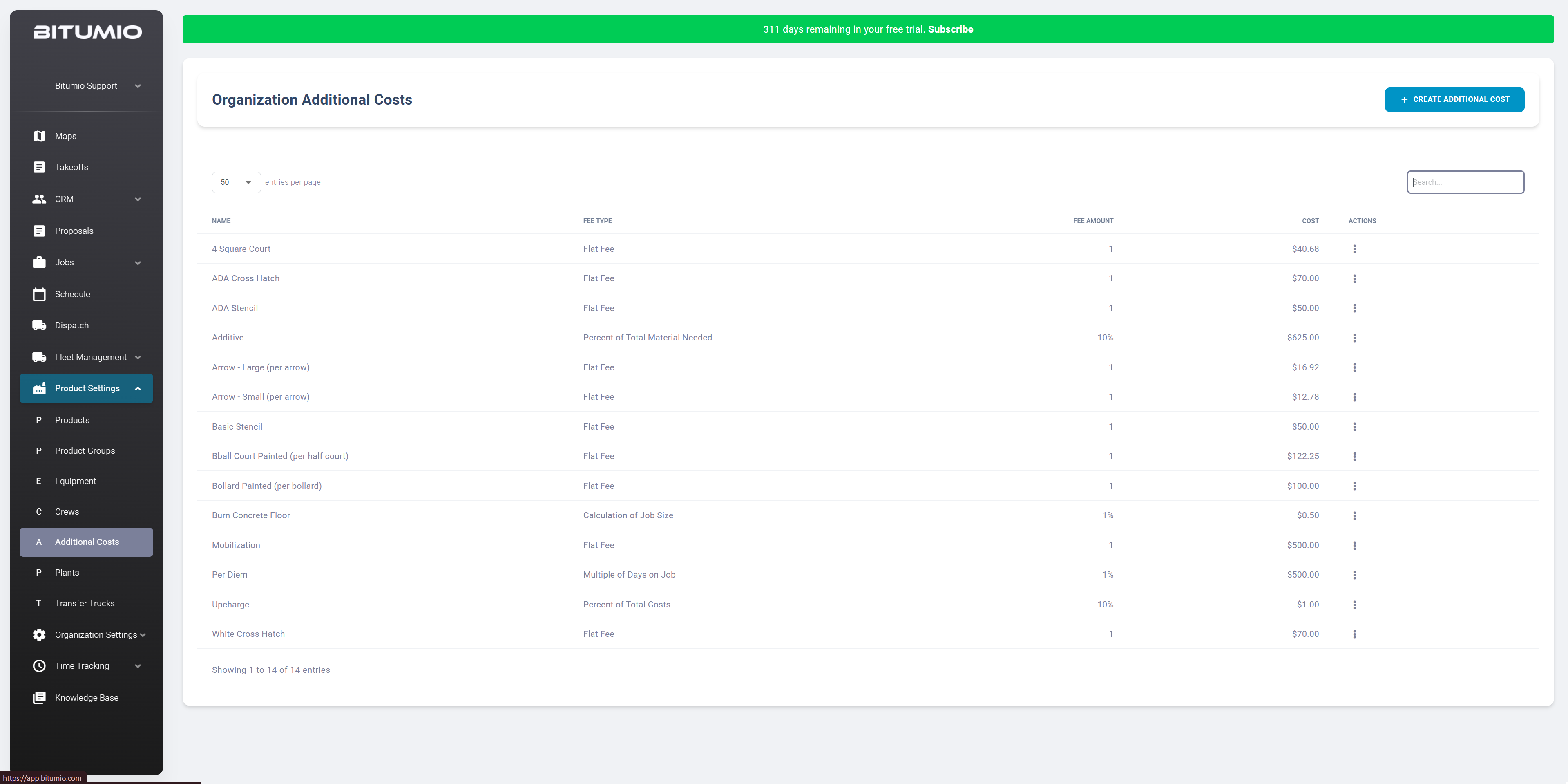
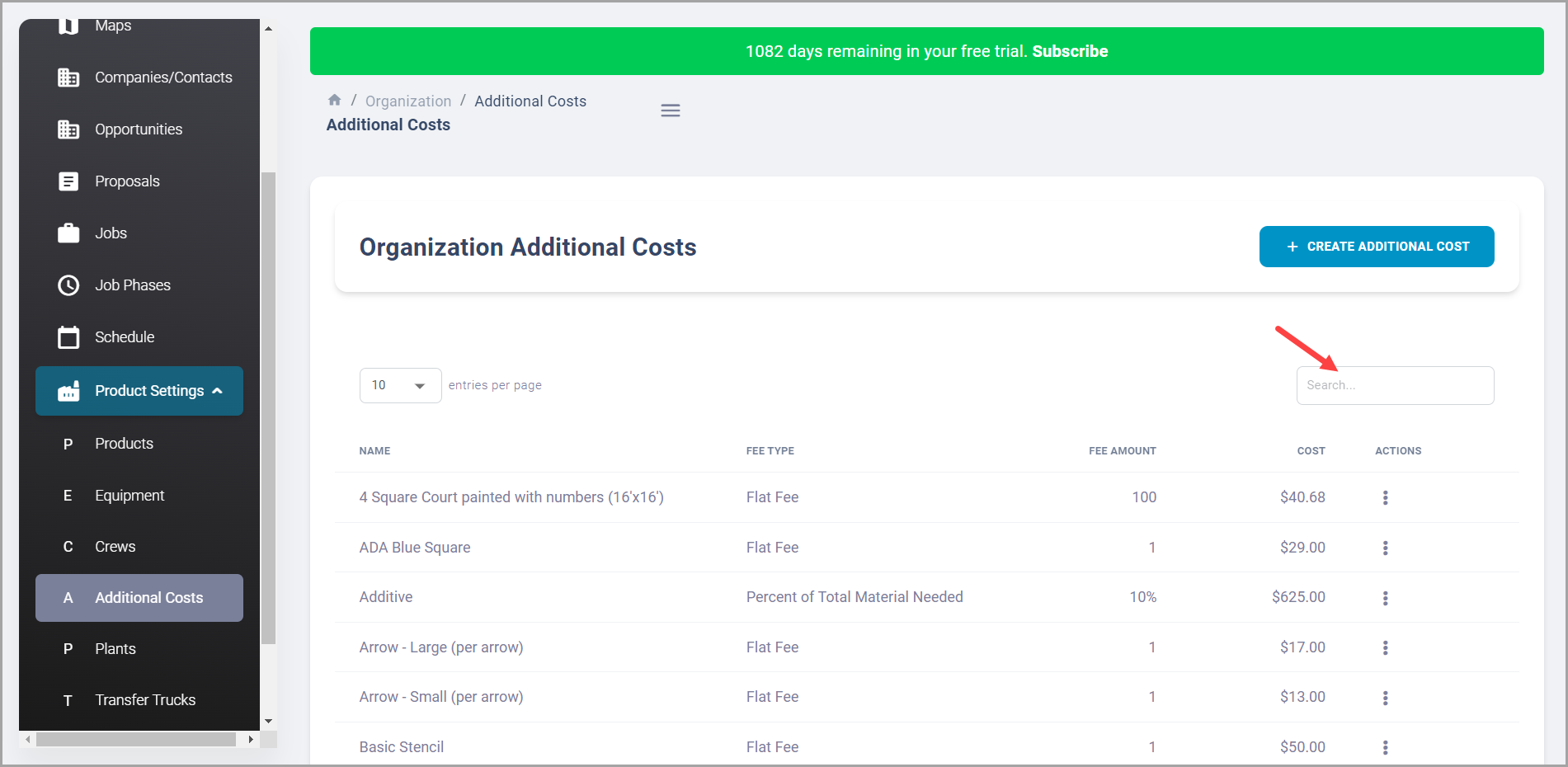
You can search for a specific Additional Cost using the search bar at the top-right corner of the grid.
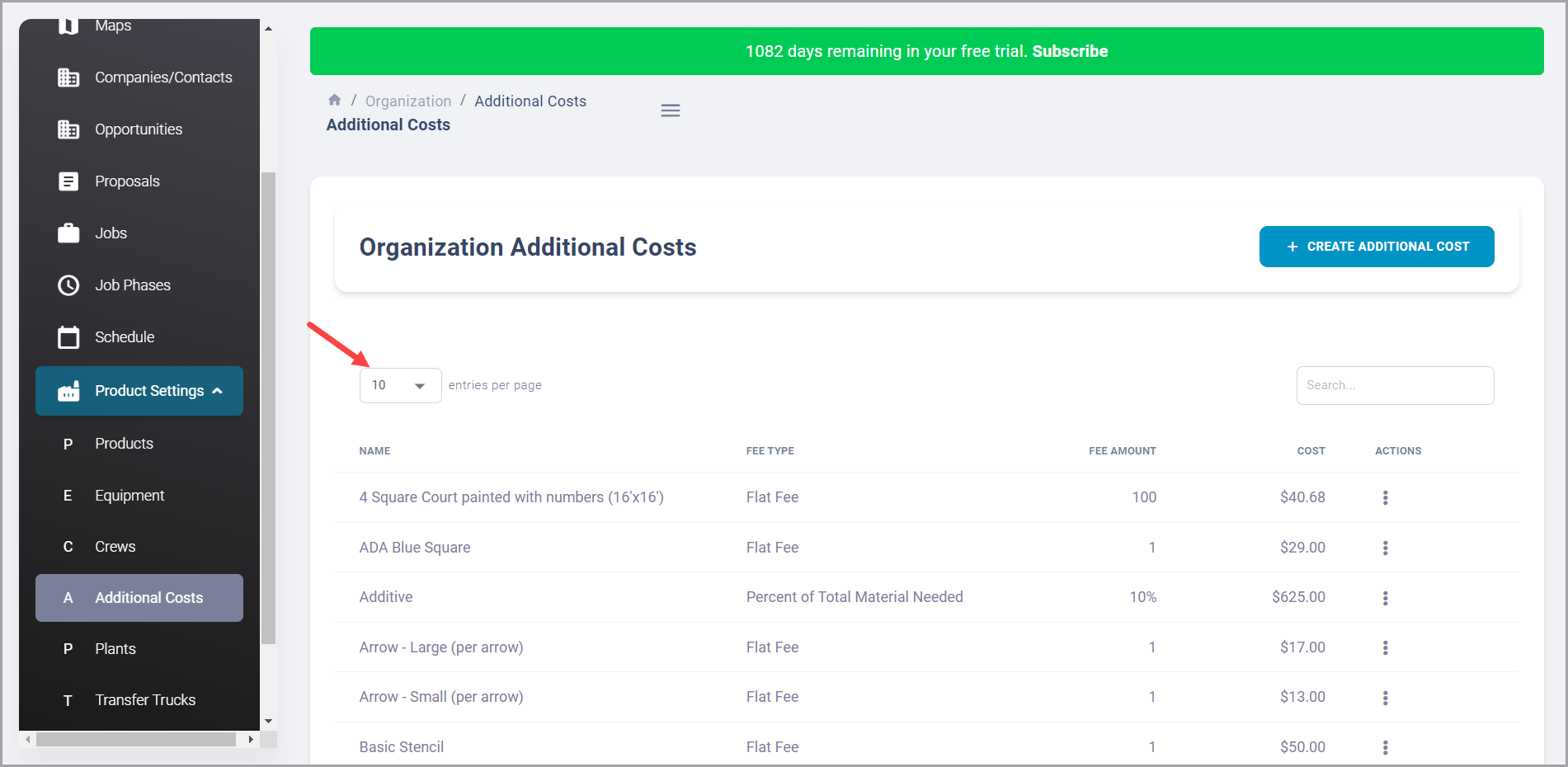
By default, 10 records are displayed per page. However, you can change this to 25, 50, or 100 using the dropdown at the top-left corner of the screen.
Creating an Additional Cost
Step 1: Click the  button to navigate to the Create Additional Cost screen.

Step 2: Here, name the additional cost using the Name field. This is the name of the Additional Cost that will appear in the Software, on Proposals, in Work Orders, etc.

Step 3: Use the Fee Type dropdown to assign a Fee Type (i.e. Flat Fee). A Fee Type determines how we are going to calculate the amount of the Additional Cost. Some the fee types include:
- Flat Fee- The cost associated to a Flat Fee does not change regardless of the size of job or amount of material. Multiple quantities of this fee can be added to a proposal but the individual cost does not change.
- For instance, a job requires parking barriers and each parking barrier costs $100
- Multiple of Job Size- This fee will change based on the size of a Job. A multiple of the job size.
- For example, a job is 10,000 square feet and this is set to 10%. This will result in 1,000.
- Percent of Total Material- This fee will change based on how much Material is needed for the Job.
- For example, a job requires 100 tons of aggregate. Additive should be added at 1% per ton of aggregate. This will result in 1 ton of additive needed. (100 x .01 = 1 ton)
- Multiple of Days on Job- This cost will be incremented by the total number of days the Job requires.
- For instance, a $200 per diem would be added to each day of a job.
- Multiple of Total Cost- Multiplies the total cost of the Job by the Fee Amount
- For example, this is set to 10% and a Proposal is $10,000, this would calculate to $1,000.

Step 4: Use the Percentage field to enter the percentage. This defines how much of the Fee should be applied to the product. This is multiplied by the Additional Fee Cost to calculate the total amount of the Additional Cost.
- For example, an Additive needs to be included in a Slurry mixture. The Additive should be added at 1% per ton of aggregate.
- For both Flat Fee and Multiple of Days on Job fee types, input "1".

Step 5: Use the Cost field to enter the cost of 1 unit of the item associated to the Additional Cost.
- For example, an additive needs to be included in a Slurry mixture. One ton of additive costs $500.

Step 6: Once the required details are filled in, click the  button.
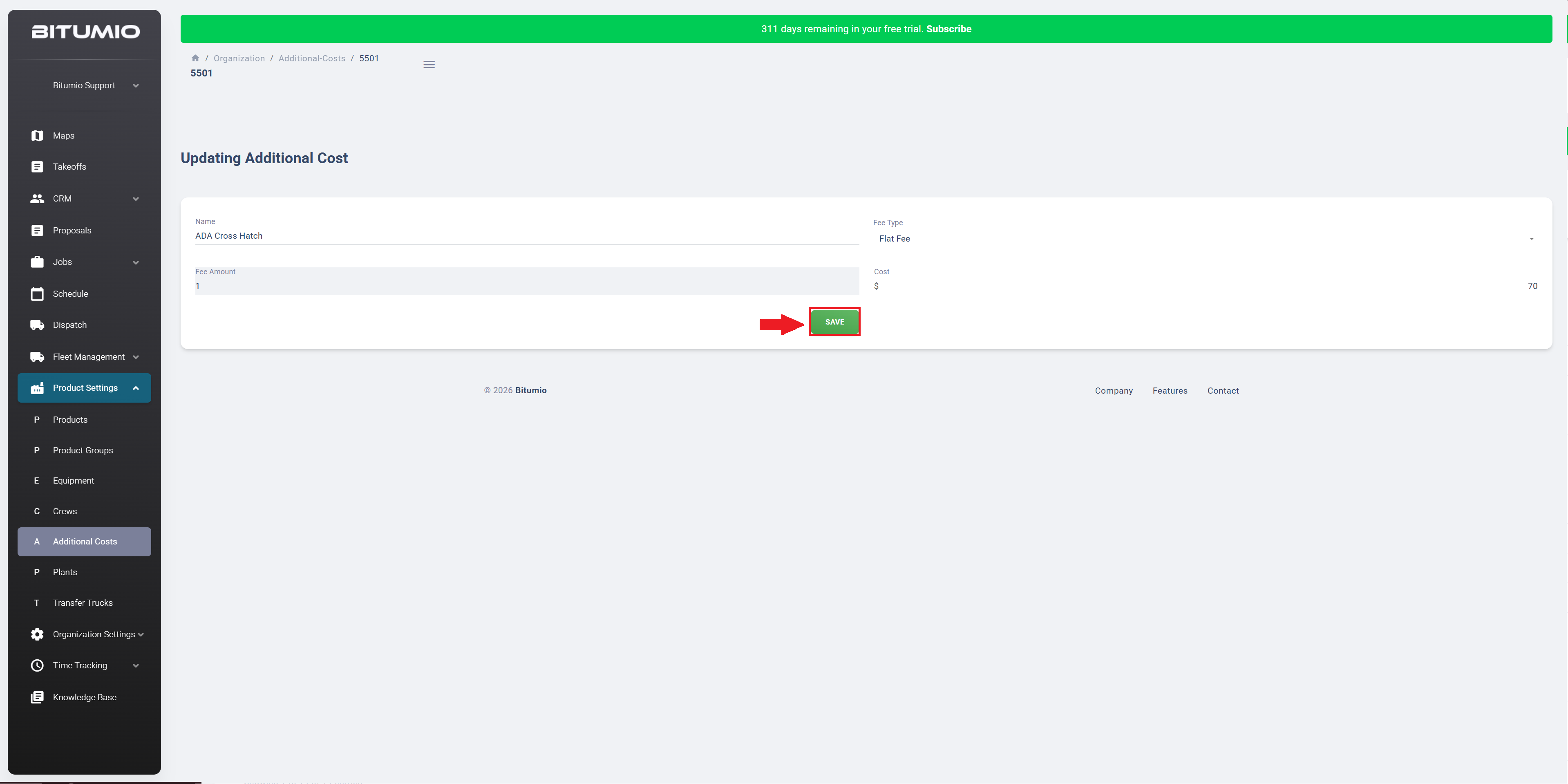
Updating an Additional Cost
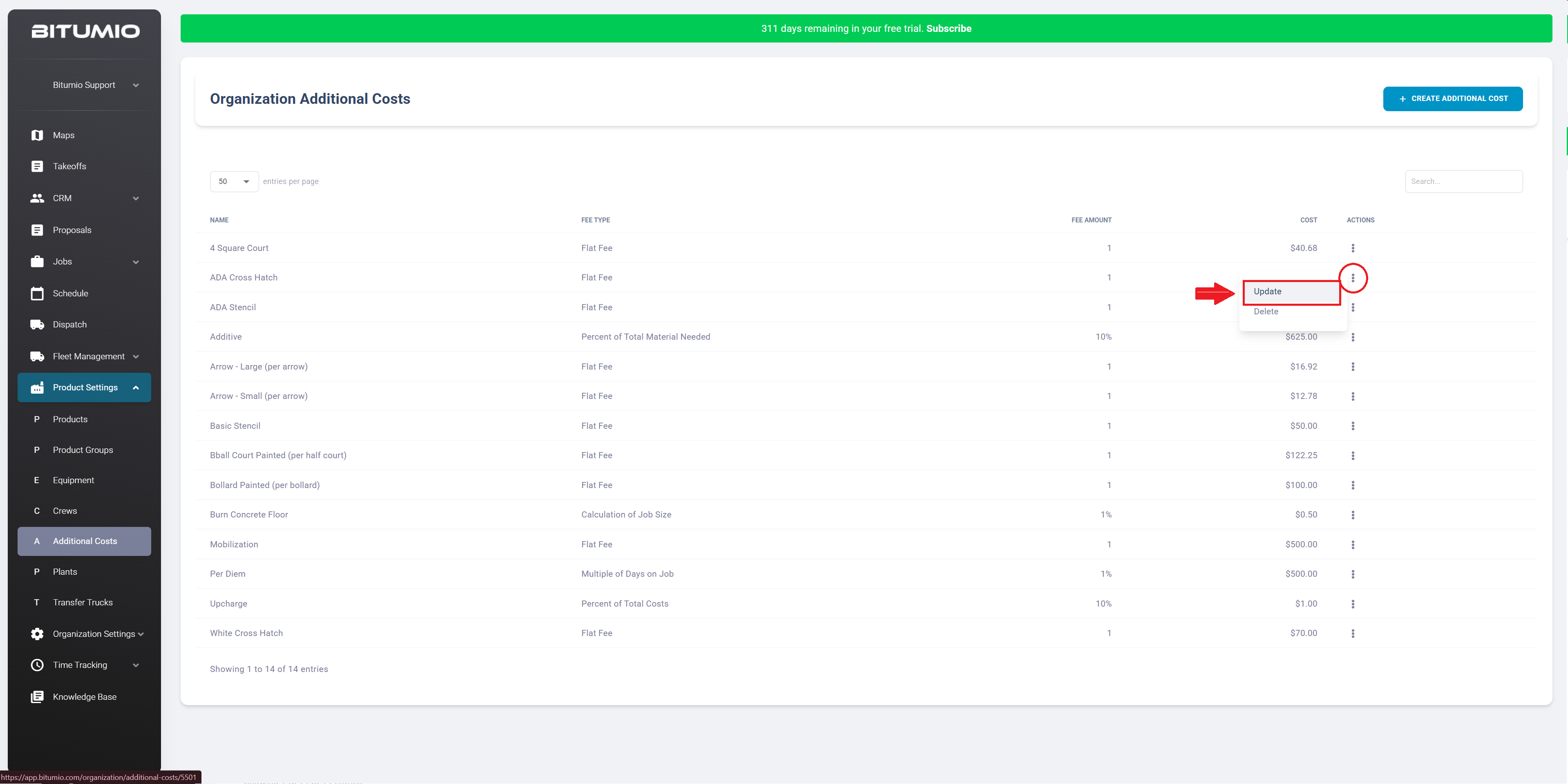
Step 1: Clicking on the name of the Additional Cost will take you to the Update Costs Screen to edit the details. Alternatively, click the  icon option under the Action menu and choose 'Update.'
Step 3: Once the required changes are made, click the  button.
Deleting an Additional Cost
Step 1: Click the  icon under the Actions column for the Additional Cost you want to remove. Click Delete from the options displayed.
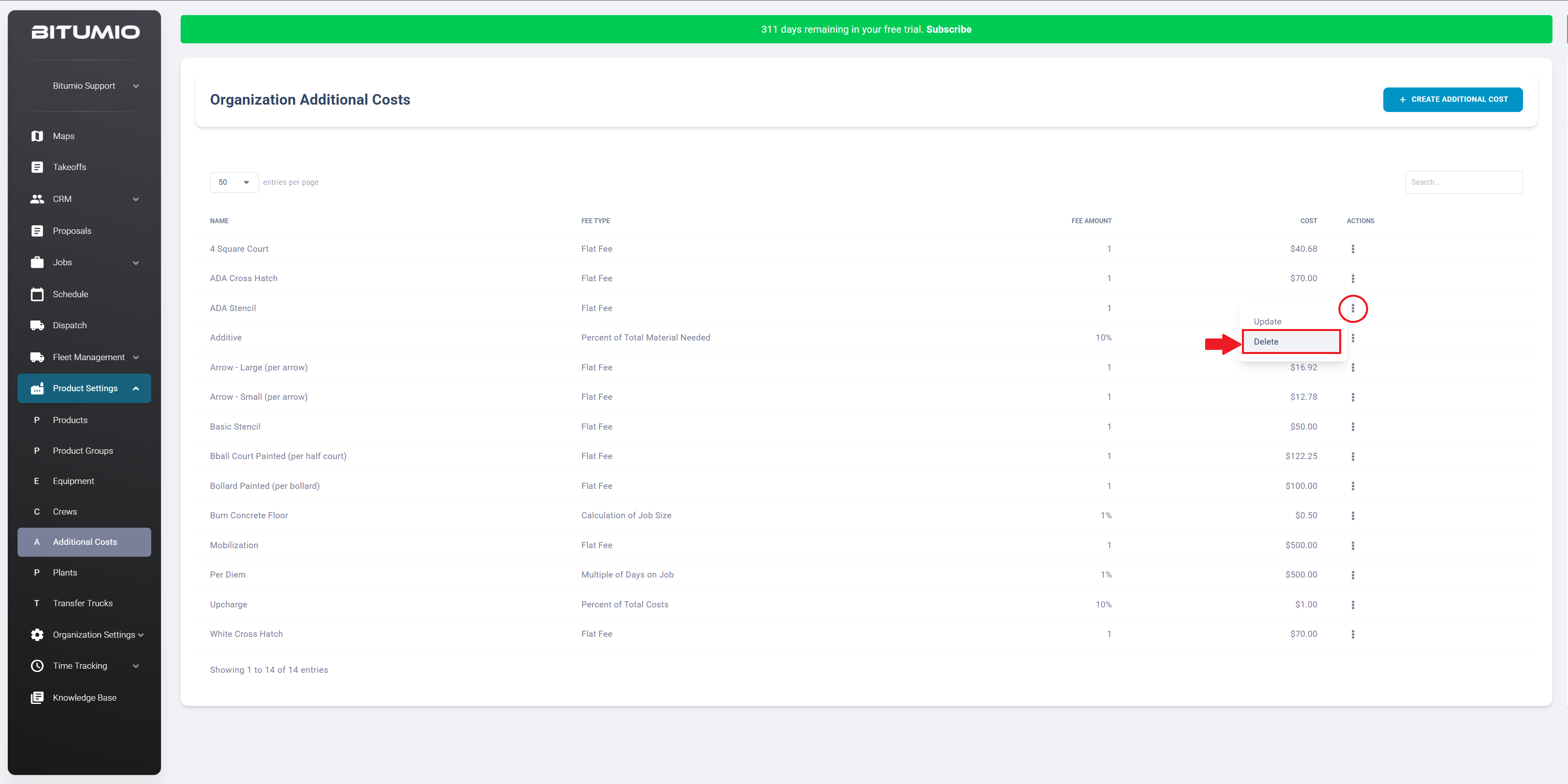
4. This displays a confirmation popup. Click the  button to confirm.

Was this article helpful?
That’s Great!
Thank you for your feedback
Sorry! We couldn't be helpful
Thank you for your feedback
Feedback sent
We appreciate your effort and will try to fix the article