Once a proposal has been signed and moved to "Closed Won" status, it is moved to a job where it is in a status of "To Be Scheduled". For a more in-depth explanation on scheduling, watch the YouTube Video on scheduling.
Bitumio > Left Navigation Bar > Schedule1. When the scheduling screen is opened, the left-hand side of the screen lists the available jobs and their statuses.
The statuses are
To Be Scheduled
Scheduled
In Progress
Work Complete
Job Costing
Ready to Bill
Complete
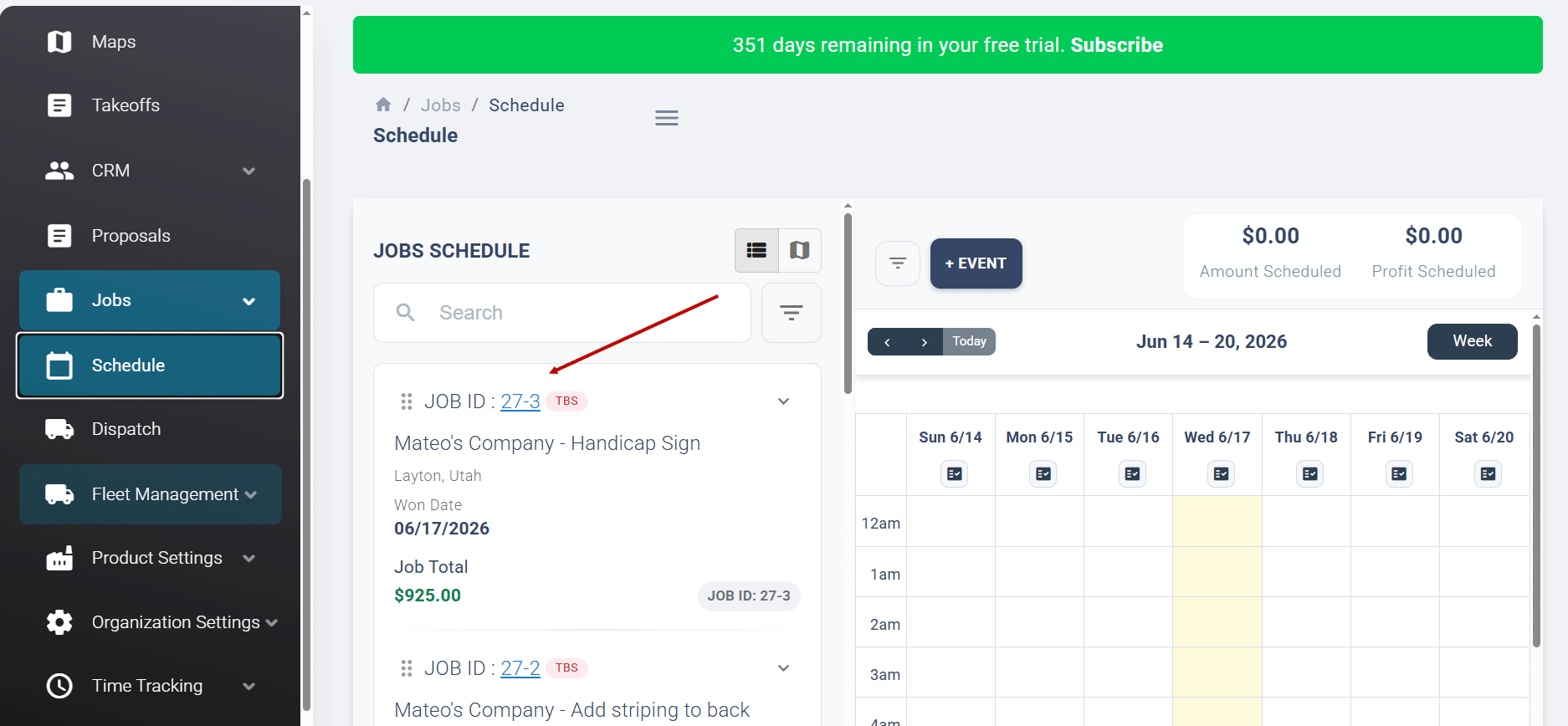
2. Click anywhere within the job to display the phases associated with the job.
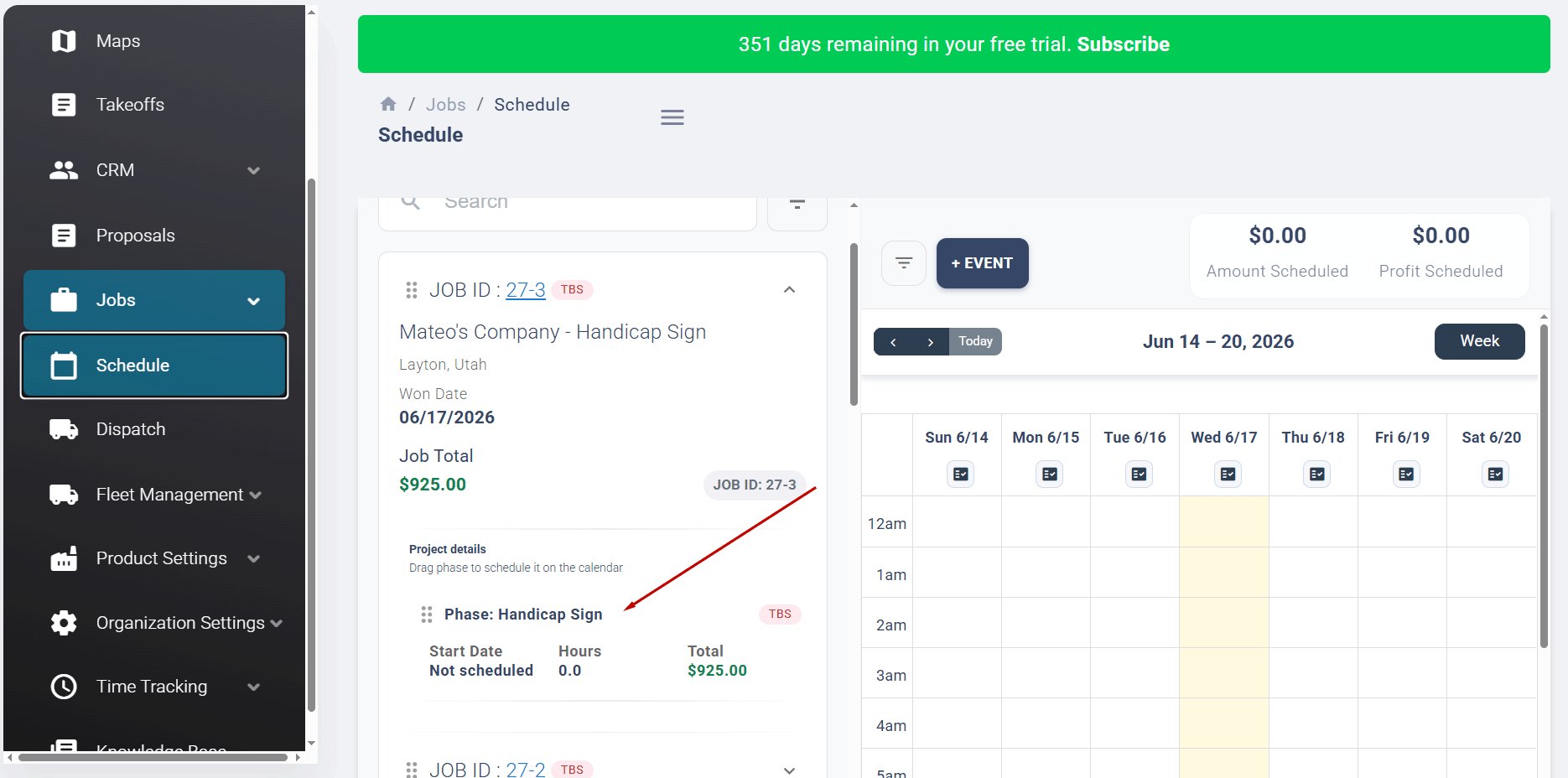
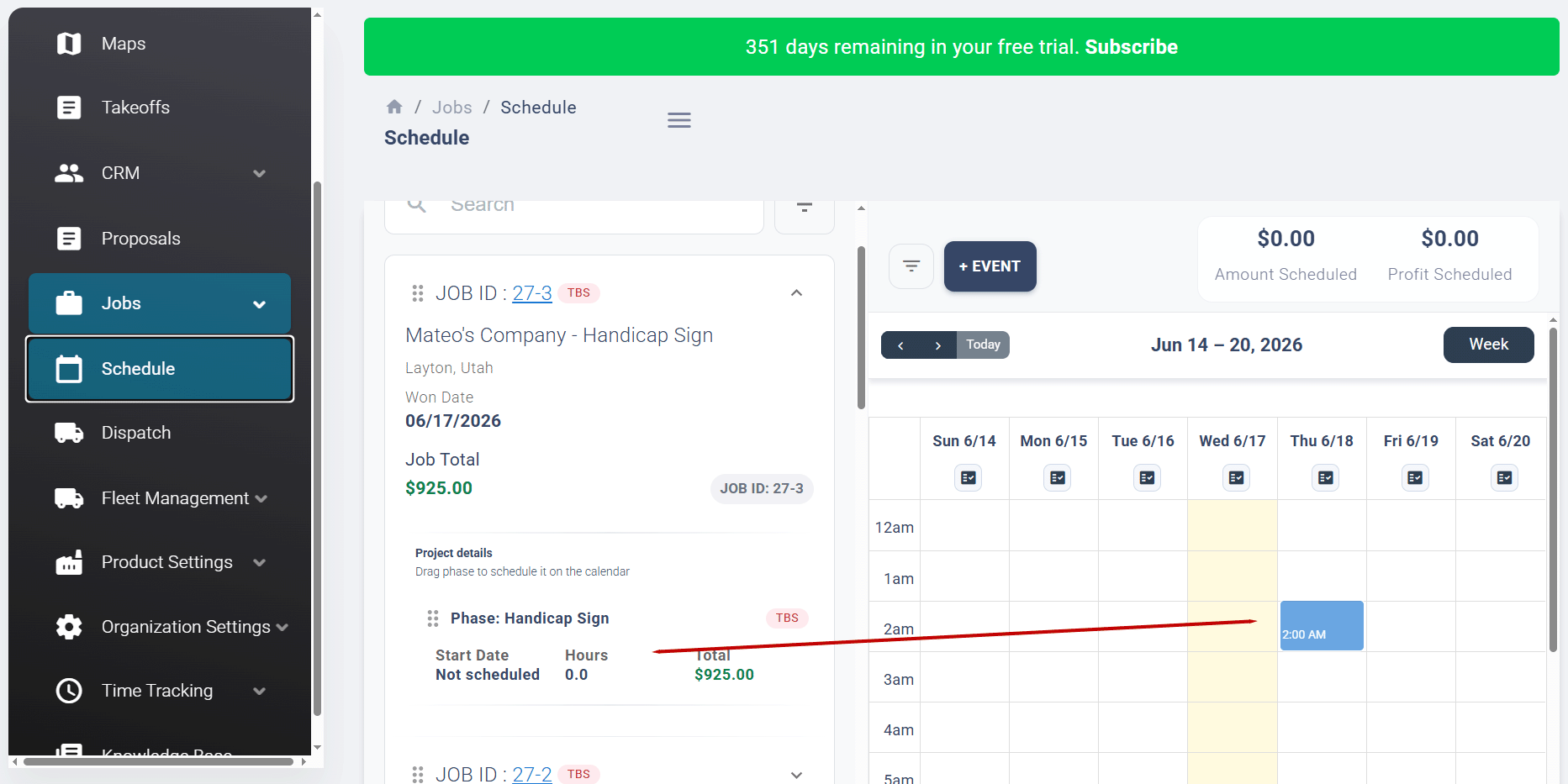
3. To Schedule a job or phase, drag and drop the entire job or phase onto the calendar. Jobs in the "To Be Scheduled" status are the only jobs that can be scheduled.
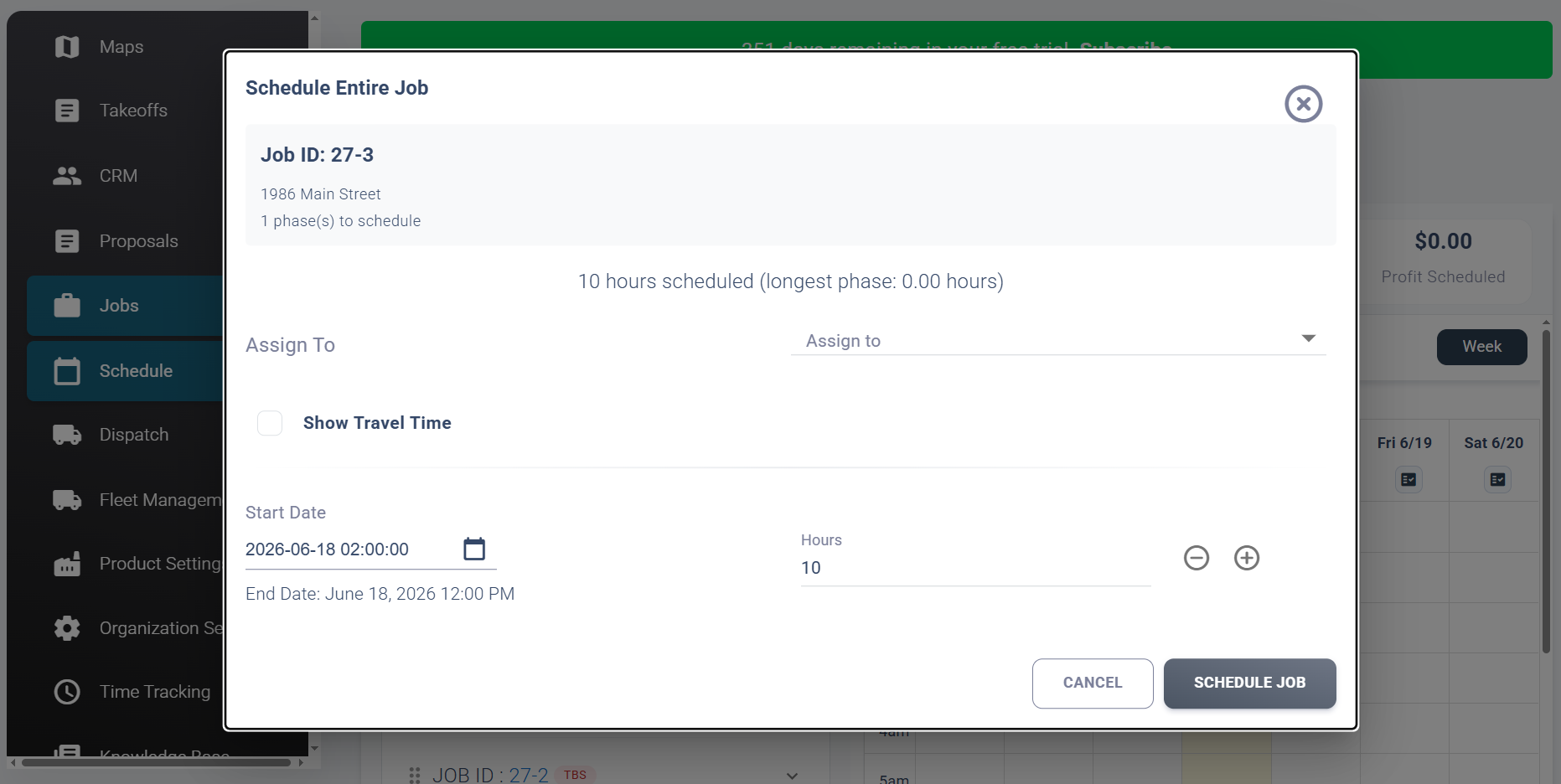
4. When a job is scheduled, the Schedule an Entire job screen is displayed.
This screen displays the following information:
- Information about the job.
- Number of hours scheduled.
- The start and end date for the job.
You can make the following changes:
- Assign the job.
- Change the number of hours this job will take.
- The start date for the job.
5. Once the required changes are made, click on the Scheduled Job button.
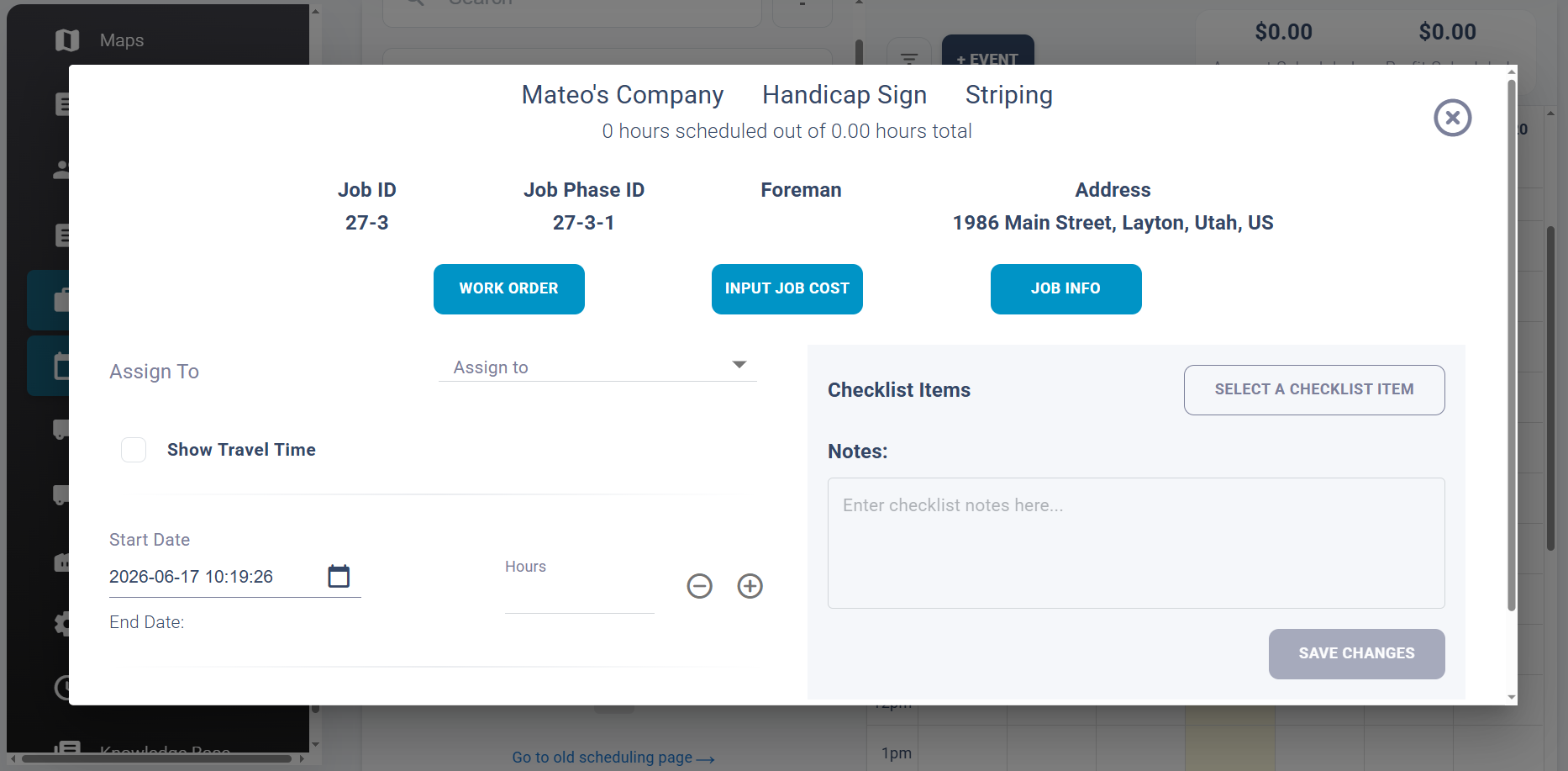
6. If a phase is added to the calendar, the phase scheduler screen appears.
This screen displays the following information:
- Information about the job.
- Number of hours scheduled.
- The start and end date for the job.
You can make the following changes:
- Assign the job.
- Select a crew.
- Show the travel time.
- Change the number of hours this job will take.
- The start date for the job.
7. Once the required changes are made, click on the ADD TO CALENDAR button.
Was this article helpful?
That’s Great!
Thank you for your feedback
Sorry! We couldn't be helpful
Thank you for your feedback
Feedback sent
We appreciate your effort and will try to fix the article