Bitumio > Left Navigation Bar > CRM > Contacts1. Follow the workflow mentioned above to land on the Contacts screen.
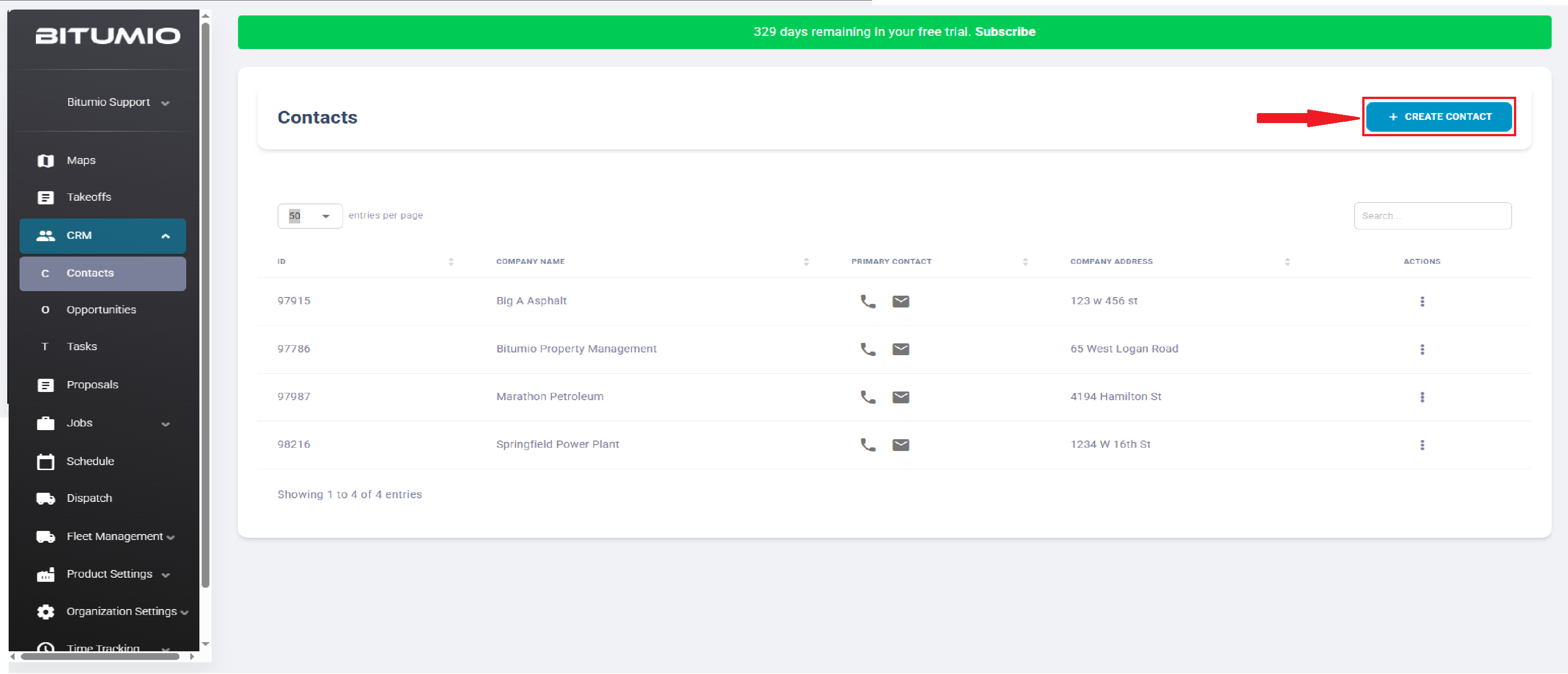
2. Click the  button located at the top-right corner. Doing so takes you to the Create Contact screen.
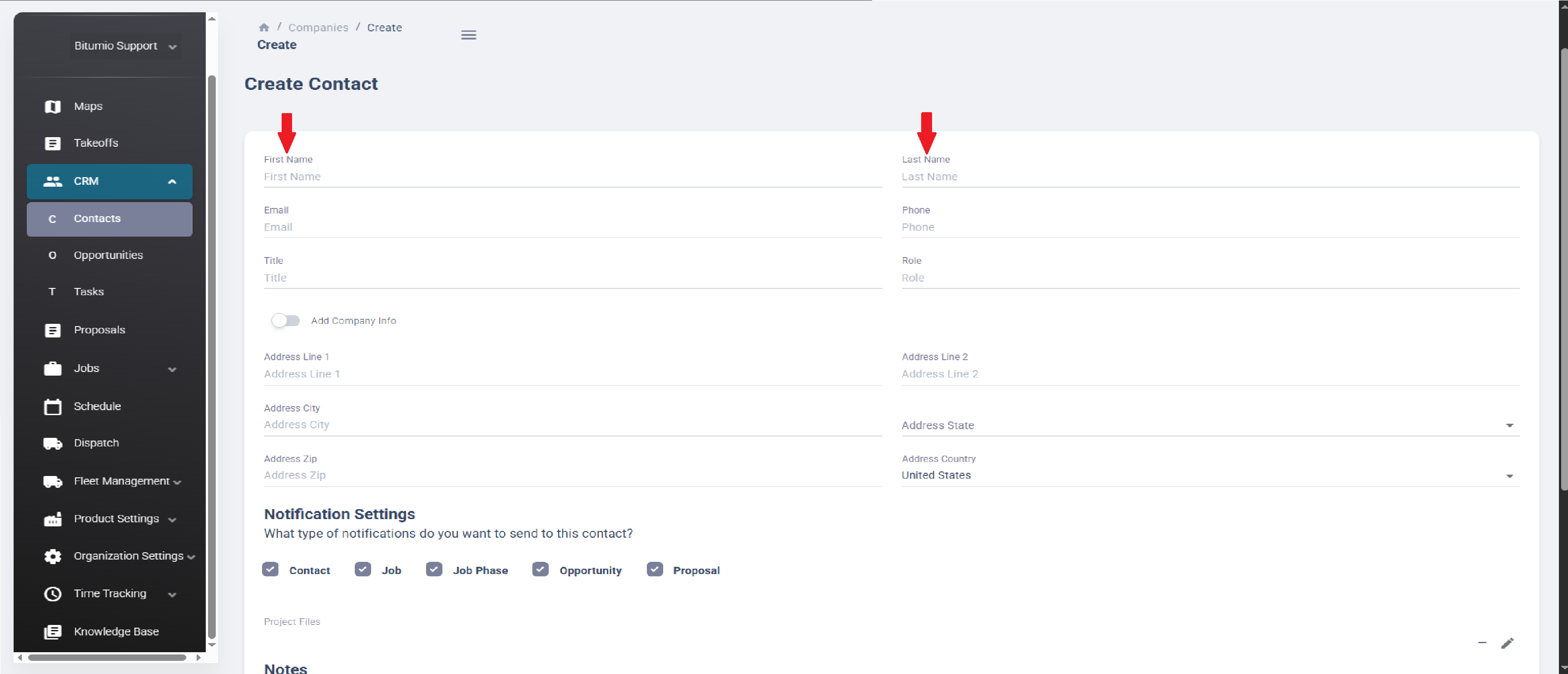
3. Enter the Primary Contact First (Required) and Last Name.
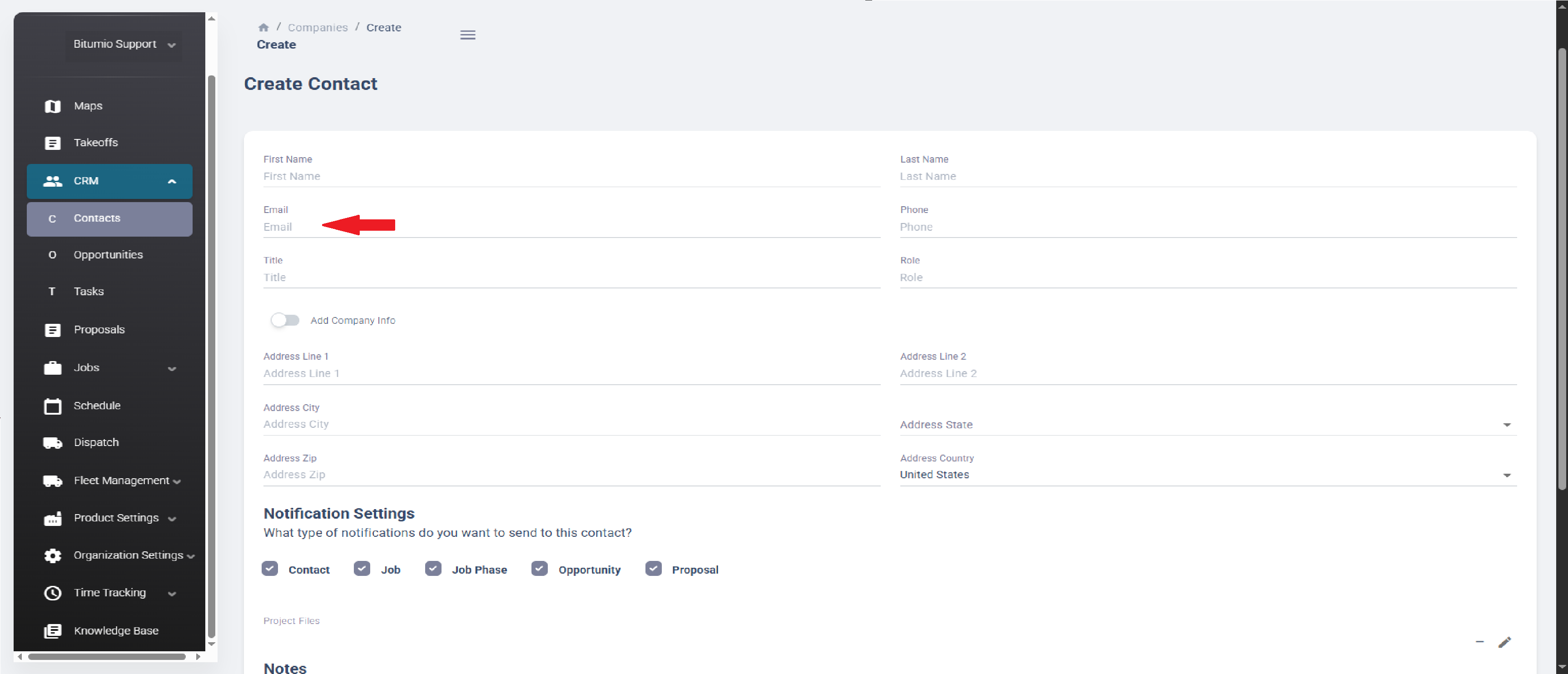
4. Provide primary contact's Email Address (Required) in the Email field.
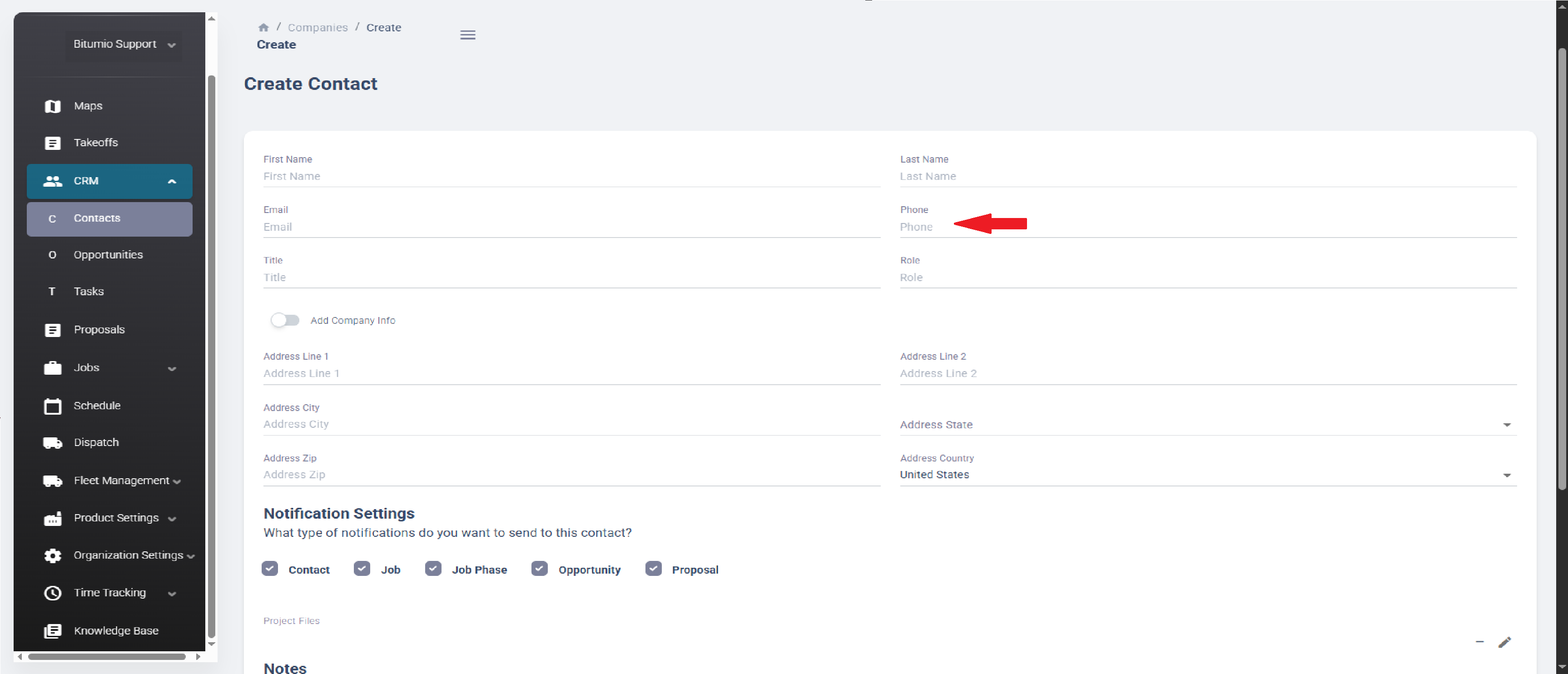
5. Use the Phone field to provide the contact number of the primary contact.
6. Use the Title field to enter the title of the primary contact.
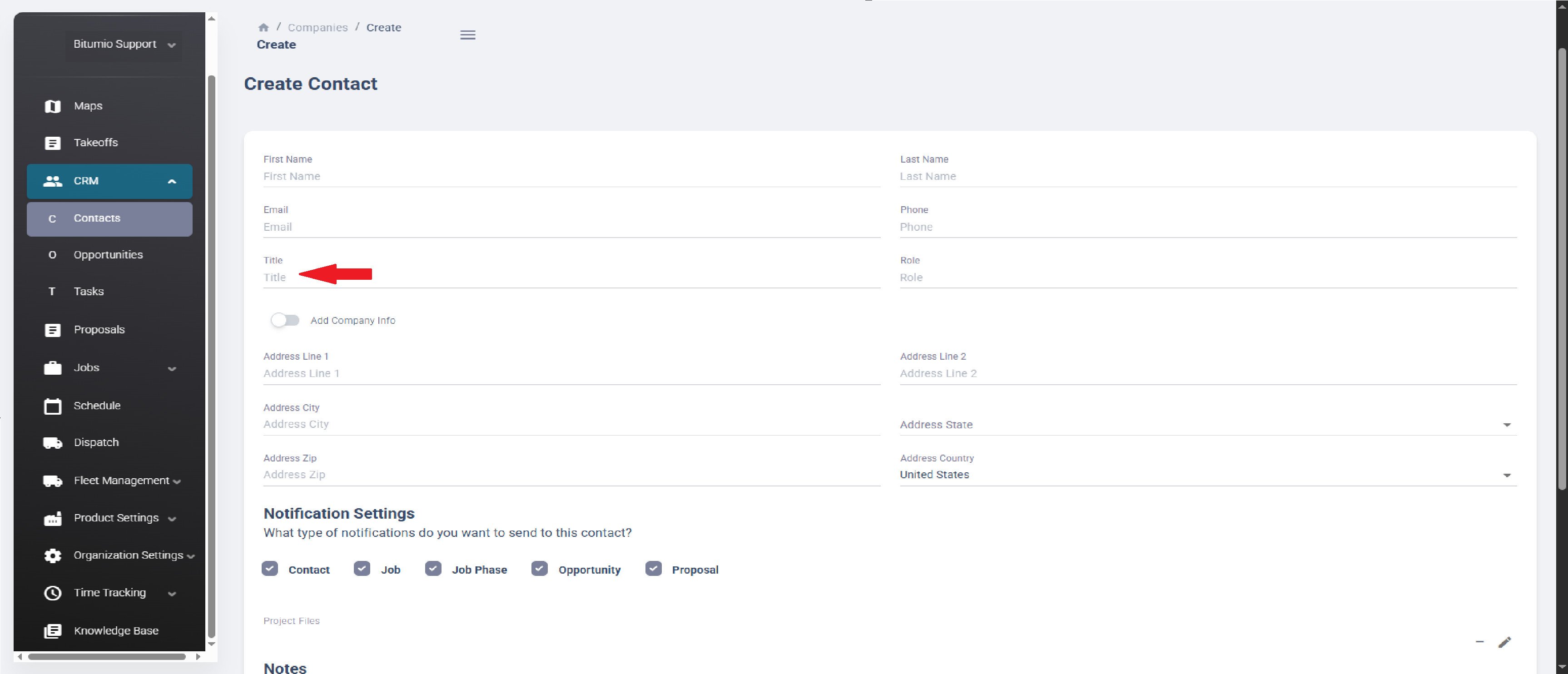
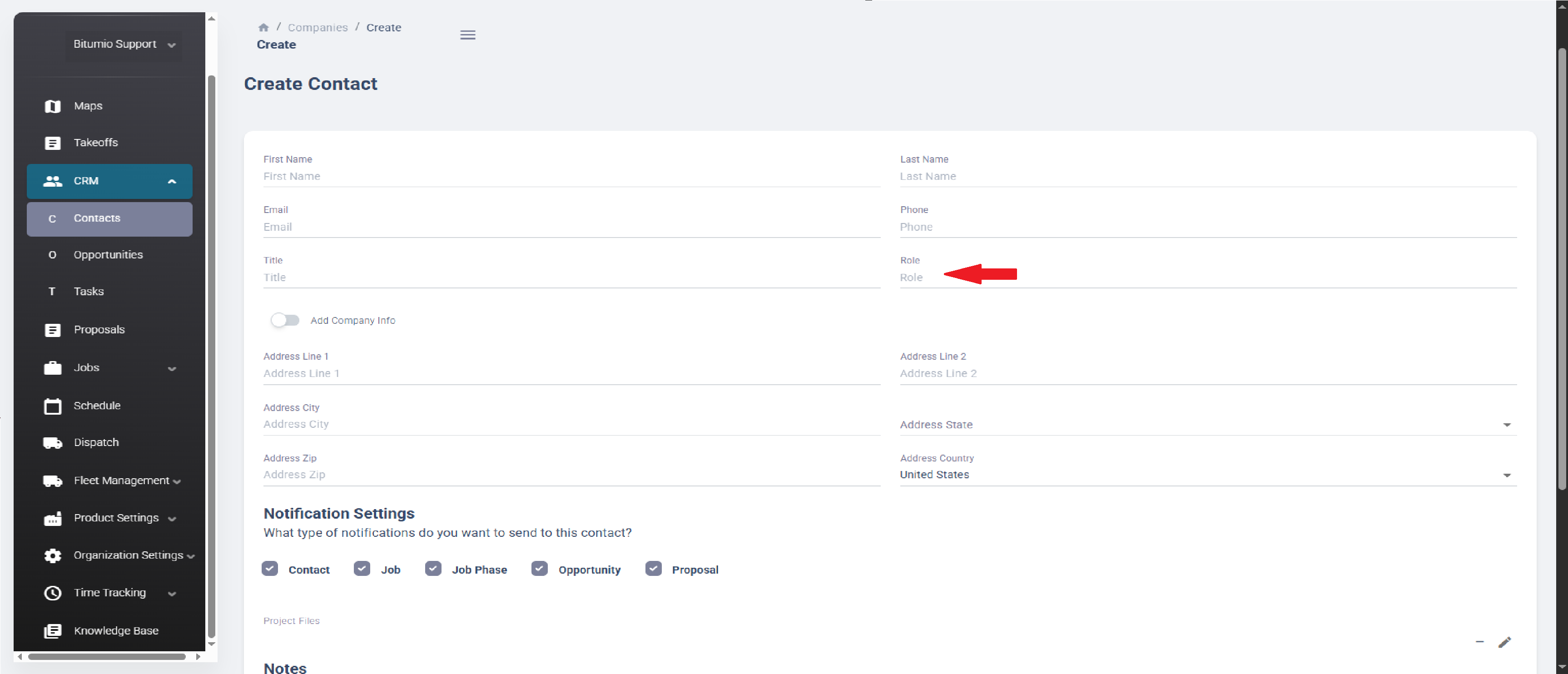
7. Enter the role the primary contact has in the company in the Role field.
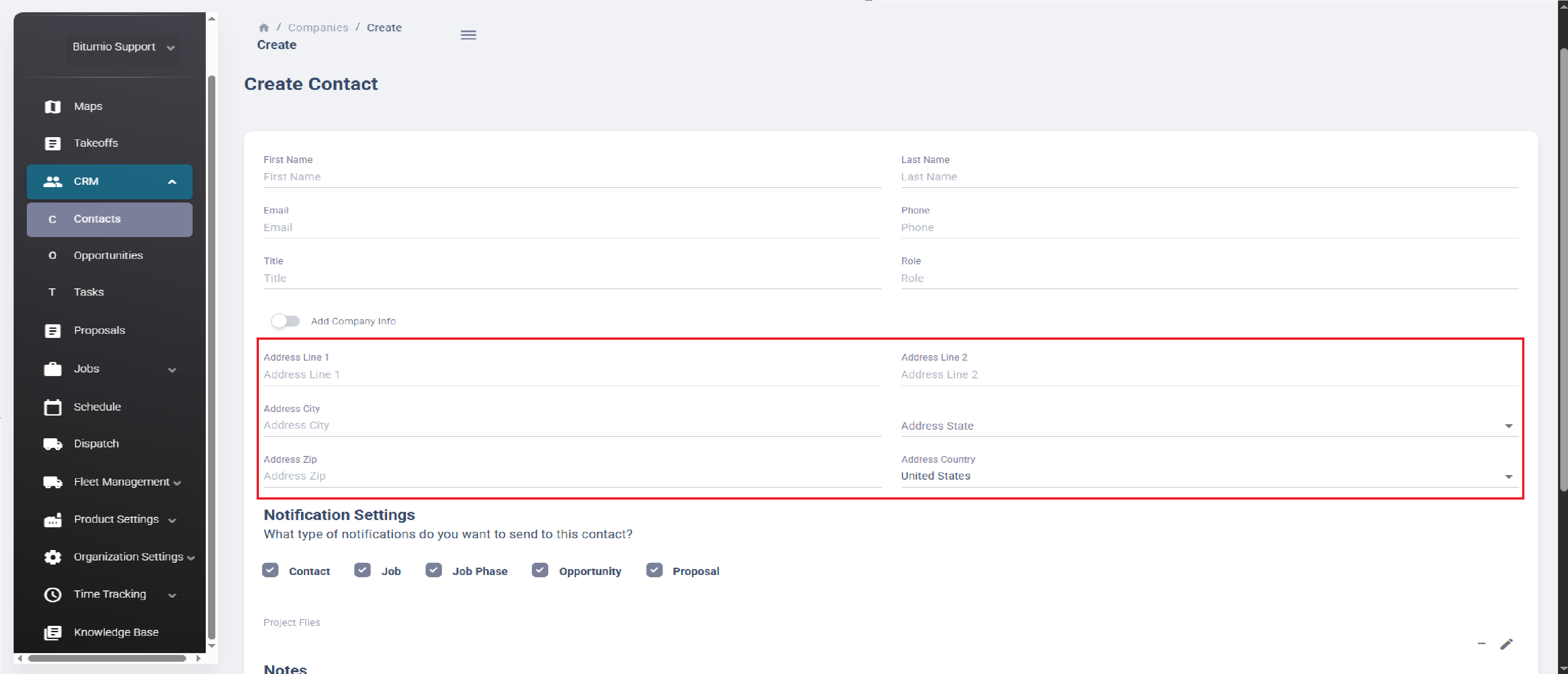
8. Use the Address fields and drop-downs to record the address of the primary contact.
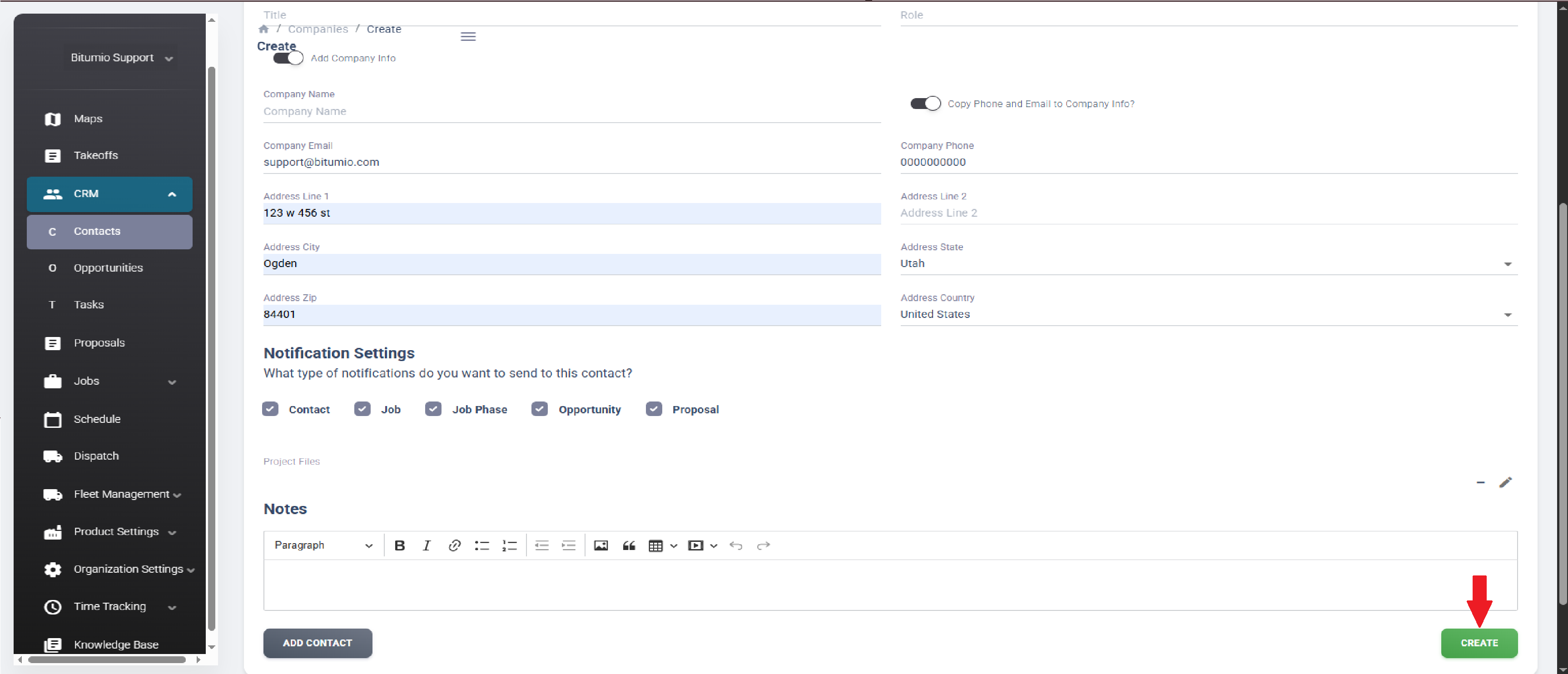
9. If you want to include Company information for this contact, toggle on the Add Company Info slider. This will reveal additional fields for entering a Company Name, Email, And Phone number.
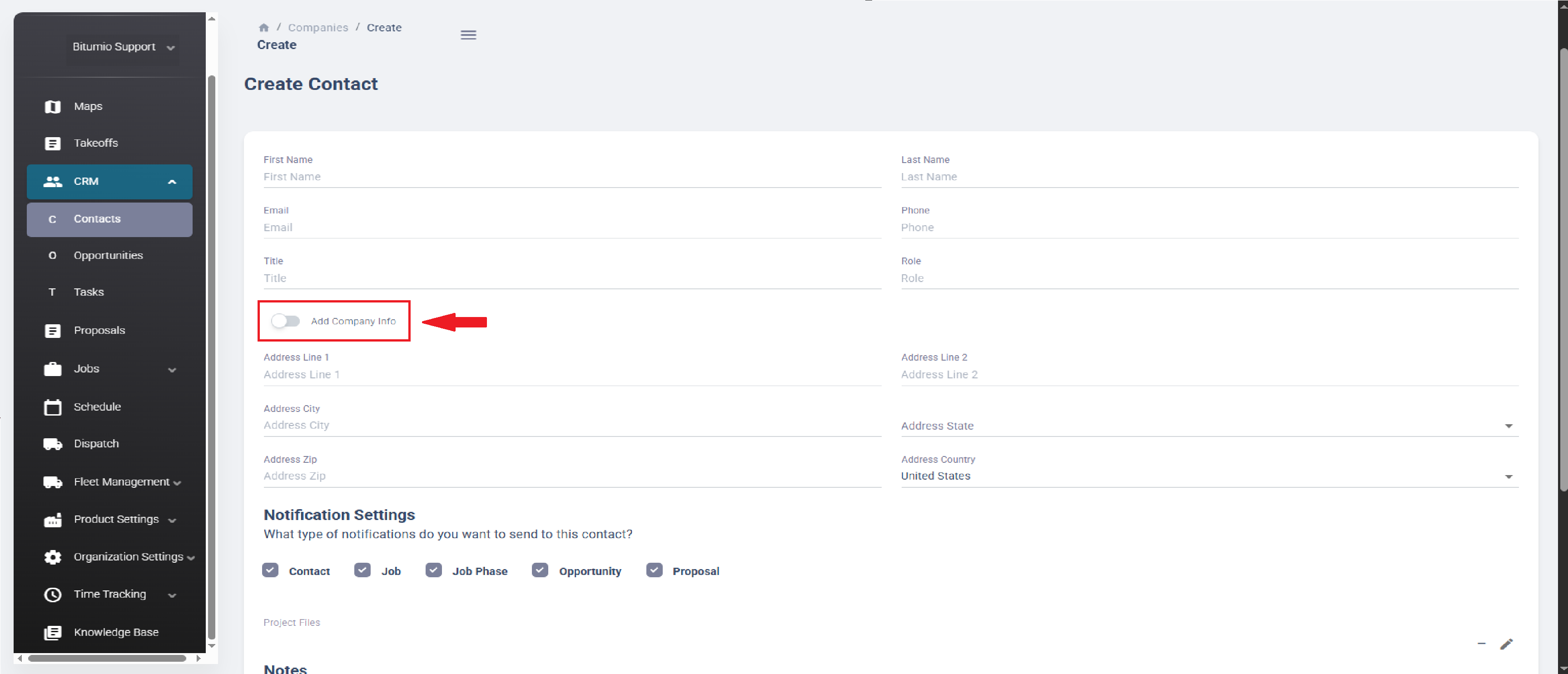
10. To automatically copy the Contact Email and Phone into the Company fields, simply toggle the slider.
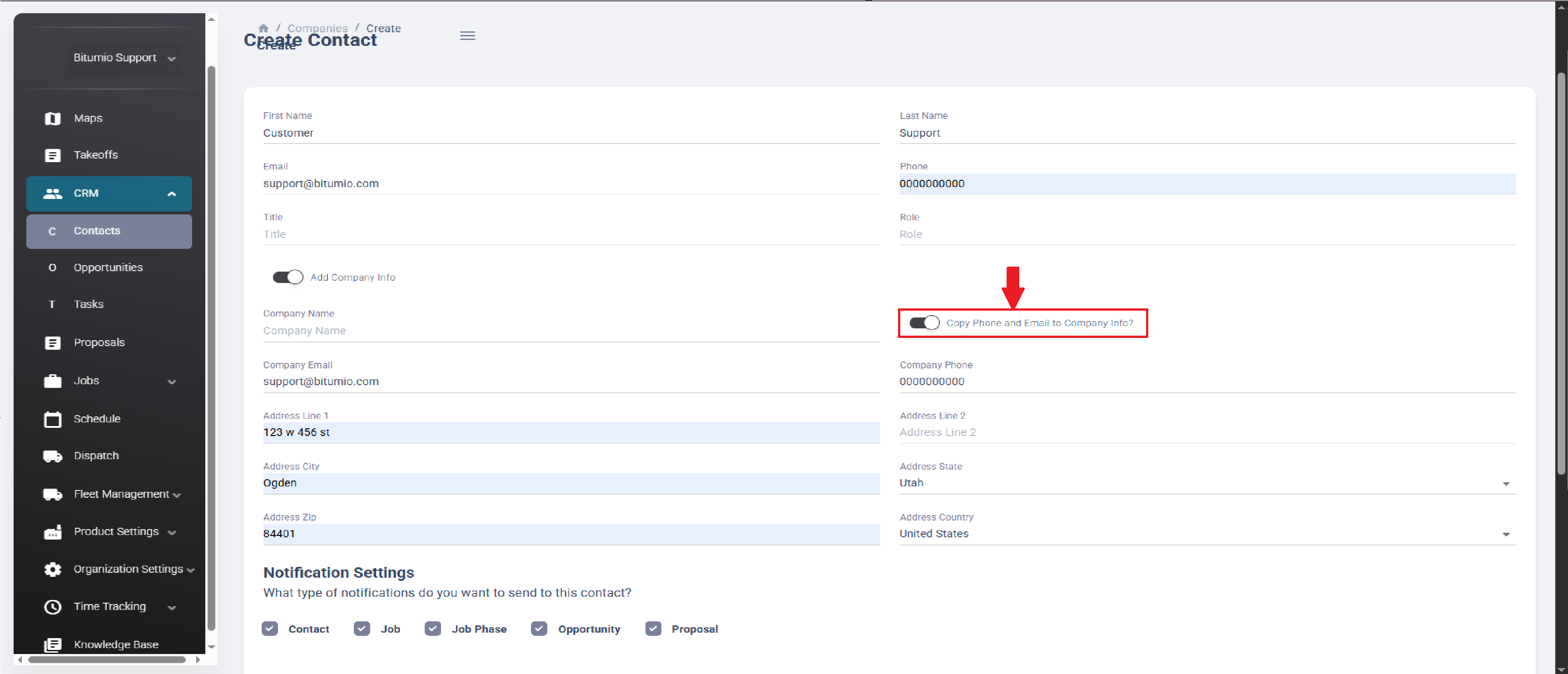
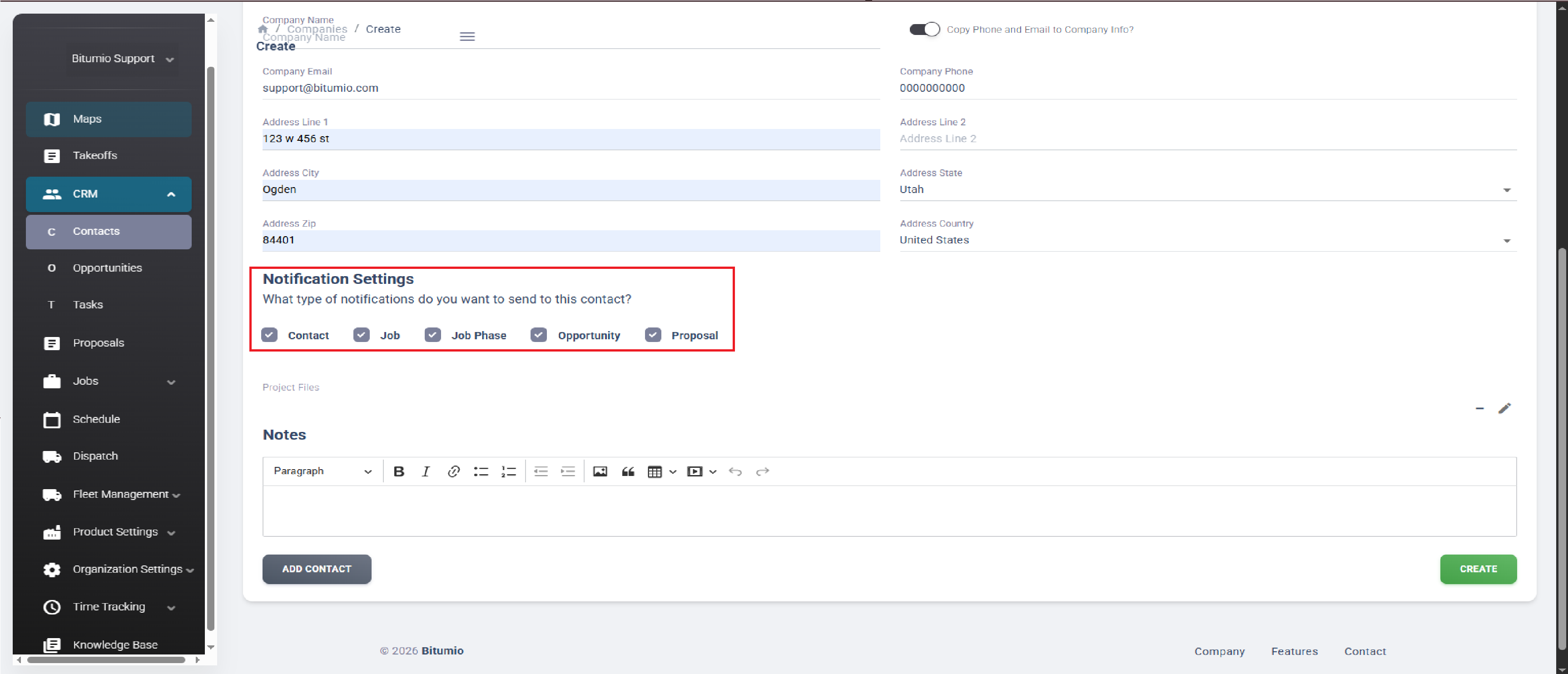
11. By default, the all Notifications are enabled. To turn off, deselect the desired notification checkboxes.
12. If you want to add another contact to this contact/company, click the  button.
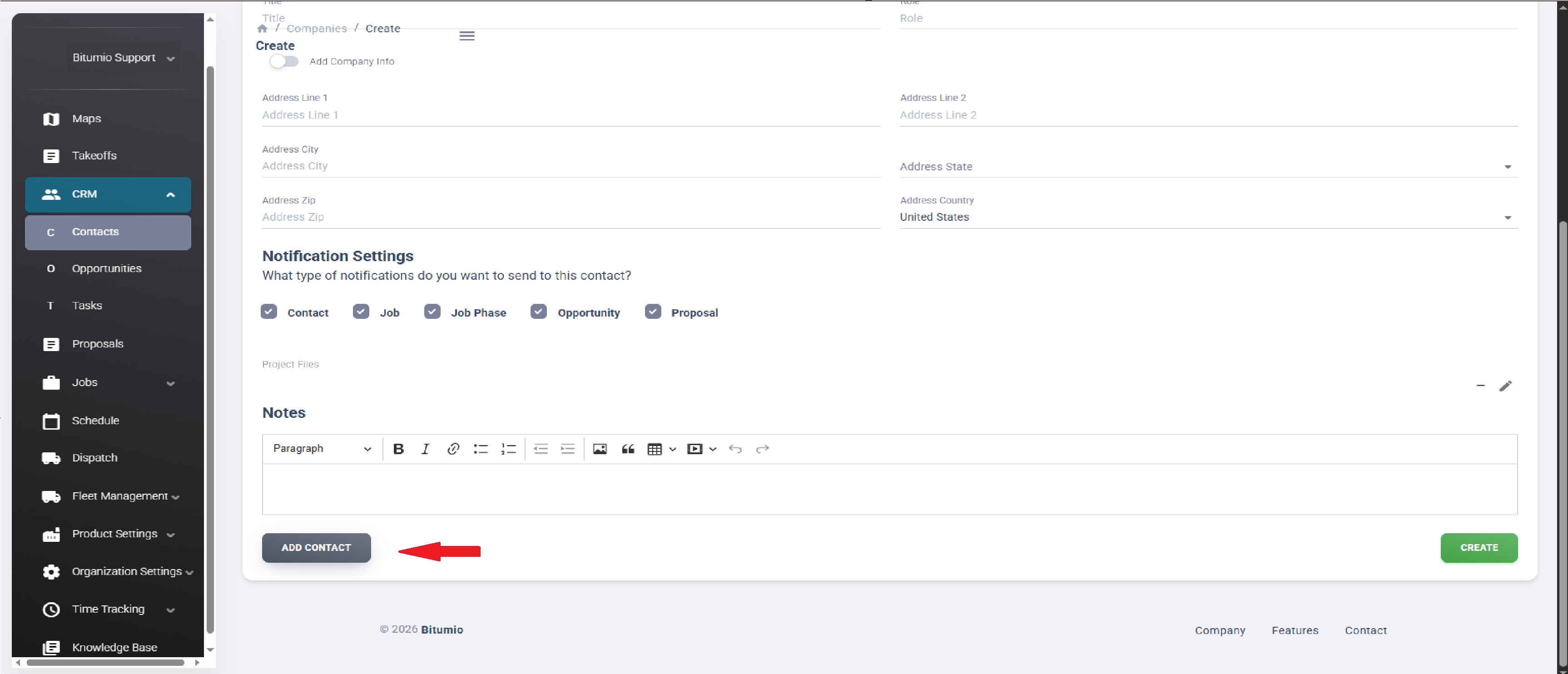
13. Once the required details are filled, click the  button.
Was this article helpful?
That’s Great!
Thank you for your feedback
Sorry! We couldn't be helpful
Thank you for your feedback
Feedback sent
We appreciate your effort and will try to fix the article